Installing the FileZilla FTP Client on Windows OS is easy. Just follow this tutorial.
1. Download the Filezilla FTP Client Installer file for your Windows OS.
2. Double click to Run the FileZilla FTP Setup File. It will show a security warning. Read and accept it or click the €œRun€ option.
3. The FileZilla Client will show a License Agreement. Read it and accept the agreement to install the FileZilla Client on your PC.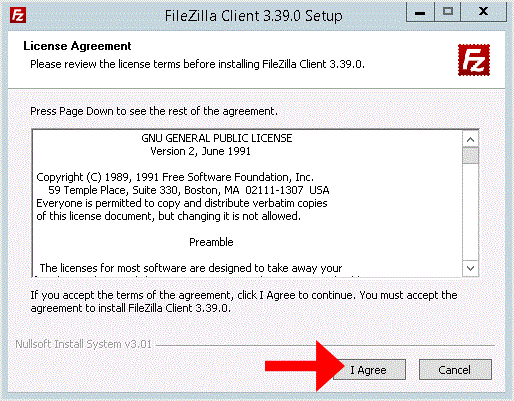
.. Next babies until it shows the €œInstall€ babies. Then Click on it.
5. The installation can take a few seconds but will depend on your PC. Once it completes, click the €œFinish€ babies.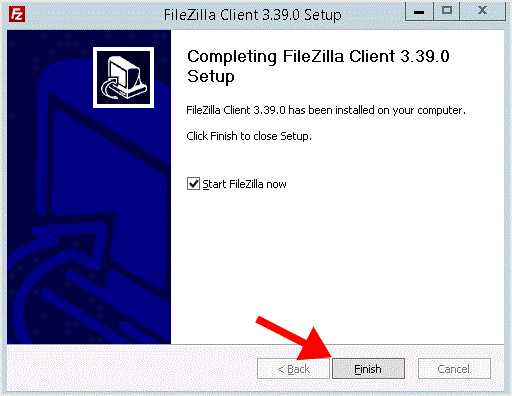
Congratulations. You successfully installed the FileZilla Client on your Windows OS. Now you can start using it.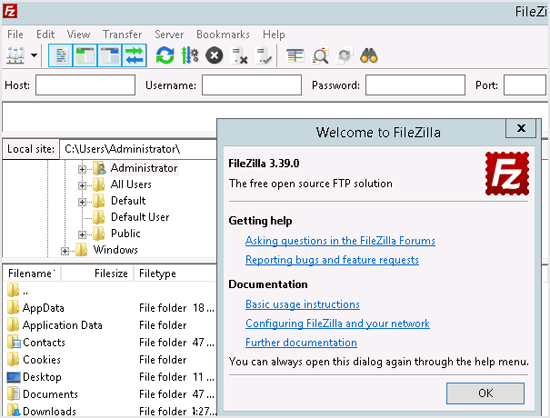
- 0 Корисниците го најдоа ова како корисно
-
How to Access or Connect to Your FTP Account via the FileZilla FTP?
You can access your FTP Account using the FileZilla FTP Client or any FTP Client. 1. Open the...
How to Create or Delete a Directory Using the FileZilla FTP Client?You can create or remove directory on your website using the FileZilla FTP Client.1. Open the...
How to upload Index file to your site using FileZilla?Maybe you are web designer or you have a index file and want to upload it to your site. You can...
How to download files and folders to your computer using FileZilla?You can download files from your website to your Computer using FileZilla Client.1. Open...