After purchasing our hosting account, you will receive a Welcome email from us which contains our "name server" and you need to update your domain name server to our "name server".
If your domain is registered on 123-reg, you should follow this tutorial to update the NameServer of your Domain to our NameServer.
1. Open the 123-reg.co.uk website and click on "Control Panel". It will show you a login form.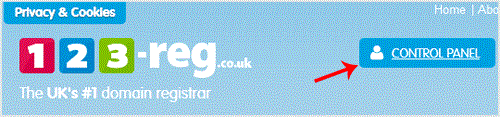
2. Enter the username and password of your 123-reg account and then click the "login" button.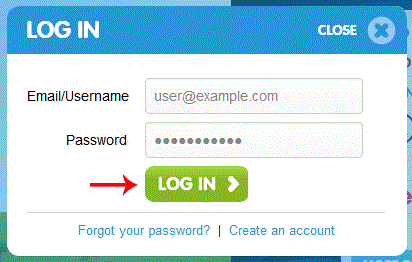
3. After a successful login, select the appropriate domain from the . list and then. "Manage" button.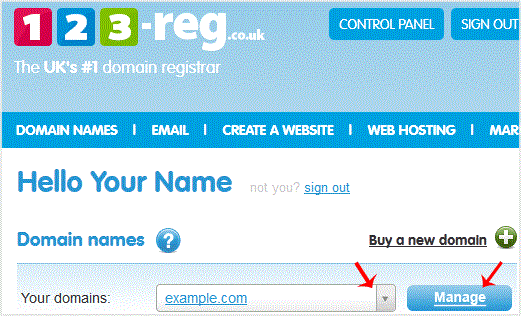
. Scroll down to the "Advanced domain settings" and then click on "Change Nameservers (DNS)".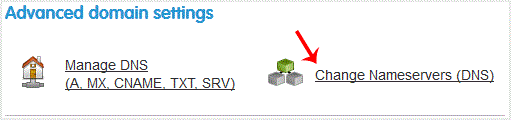
5. Enter your Nameserver in field 1 and field 2 and then. "Update" button.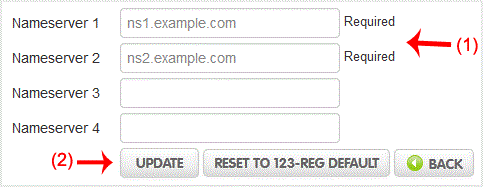
You will see a success message.
Note: It may take anywhere from 12 to 24 hours for the changes to take effect worldwide.
Get Fast & Affordable Hosting in India
Start your website with SSD hosting, free SSL, cPanel, daily backups and 24/7 support from HostCupid.
Also explore: WordPress Hosting | Reseller Hosting | Domain Registration
Read the Complete Domain Guide
- 0 Пользователи нашли это полезным
-
How to Download Backup of Home Directory, MySQL or E-mail Only?
1. Log into your cpanel account.2. In the "Files" section, click on "Backup Wizard" Icon. 3....
How to check disk usage of directory and bandwidth usage?If you are receiving a disk space usage warning and don't know which folder is using too...
How to Update a Cronjob E-mail Address?If you want to receive a cronjob error or notification, you can update your e-mail address from...
How to add a user to a database and add privileges?1. Log into your cpanel account.2. In the "Databases" section, click on "SQL Databae"...
How to update DNS Nameserver on Name.com?After purchasing our hosting account, you will receive a Welcome email from us which contains our...