
Published 5 October 2026
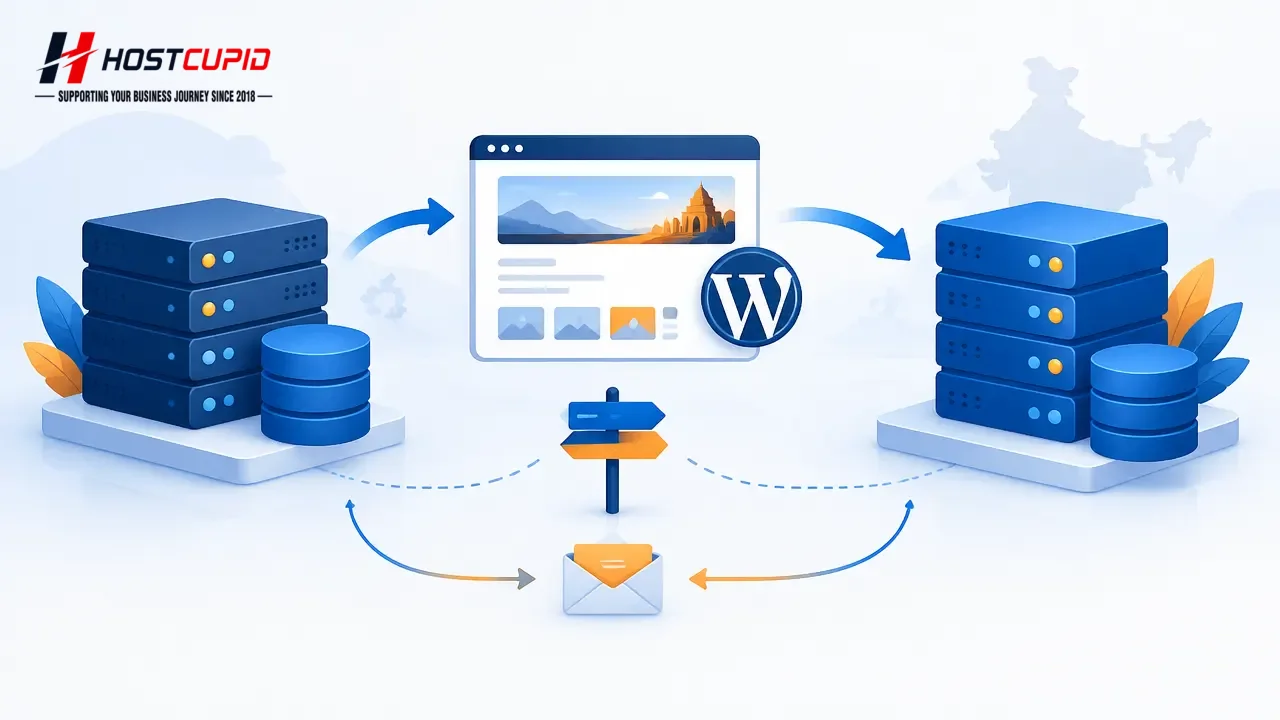
Moving a WordPress website to a new hosting provider does not require a new WordPress installation if you are keeping the same domain and URLs. The safer approach is to copy the site files and database, test the new copy before changing DNS, and keep the old hosting active until the new site and email have been checked.
This guide is for site owners changing hosting infrastructure while keeping their public URLs the same. If you are changing your domain or page URLs as well, you will also need a URL mapping and redirects; that is a different kind of site move.
Before the move: know what must be transferred
A WordPress site has two essential parts: its files and its database. Files include WordPress itself, themes, plugins, uploads and configuration files. The database holds content and settings. A copy of only one part may not produce a working, current site.
- Make a fresh backup of both files and database. Keep a copy somewhere separate from the hosting account you are leaving.
- Inventory the services tied to the domain. Note where DNS is managed, which service receives email, and whether the site uses forms, payment gateways, scheduled tasks or external integrations.
- Check access and compatibility. Confirm you can access the old hosting account, the new account, the domain’s DNS controls and the WordPress administrator account. Ask the new provider about supported PHP and database versions if you are unsure.
- Choose a quieter window. For a shop or busy site, avoid starting during a promotion or high-order period. Plan how you will handle orders, comments or form submissions created while the move is in progress.
For an active ecommerce site, the database can change while files are being copied. Agree a short content or order freeze, or use a migration process that accounts for changes made during the move. Otherwise, the new copy may miss recent orders or customer updates.
Copy the site and test it before changing DNS
Your migration method depends on the hosting control panel and the access available. A cPanel account transfer may be possible when the providers support it; otherwise, a migration tool or a careful manual transfer may be used. WordPress’s official migration guidance also calls for transferring both the site files and database, and updating configuration if database details change.
- Copy the files and export the database. Confirm the backup is complete and readable before relying on it.
- Create or import the database on the new account. Record its database name, user and password, then update
wp-config.phpif those details differ from the old account. - Test the new copy using a temporary method. Use a provider-supported preview or hosts-file test where available. Check the homepage, several internal pages, images, login, forms and any important checkout flow.
- Check HTTPS and WordPress settings. Confirm the site loads securely, the WordPress and Site Address settings are expected, and permalinks work. Do not replace the live site’s URLs with a temporary testing hostname.
- Remove launch-only restrictions. If the test copy was blocked from crawling or set to noindex, make sure those restrictions will not remain on the live site after launch.
Do not cancel the old hosting account just because the new copy loads on your computer. DNS caches can send visitors to either location for a period after a change, so the old account may still receive visits or email.
Switch DNS carefully, including email records
DNS is the system that directs a domain to services such as a website or mail server. The website’s A or AAAA records and email’s MX records serve different purposes. Changing nameservers or copying a DNS zone without checking its contents can unintentionally affect business email or other services.
- Review the current DNS zone. Record the website records, MX records and any important TXT or CNAME records used for email verification, security or third-party services.
- Confirm where email should go. If email remains with a separate mail provider, preserve its MX records and related settings. If email is moving too, verify mailboxes and routing on the new service before switching.
- Change only the intended DNS settings. Follow the instructions from the domain or DNS provider. If practical, lowering the relevant record’s TTL ahead of the move can help cached records refresh sooner, but it does not make propagation instantaneous.
- Test from more than one connection. Open the site on mobile data and another network, check that HTTPS works, and send and receive test emails if mail settings were involved.
After launch: verify before closing the old account
Keep both hosting accounts available while DNS changes are taking effect. Google notes that a temporary change in crawl rate can occur after a hosting change; monitor Search Console and check that Google can access the new hosting. A short-lived crawl fluctuation is not by itself proof that the migration failed.
- Test key pages, images, forms, logins and checkout on the public domain.
- Check for WordPress errors, missing media, broken permalinks and failed scheduled tasks.
- Review Search Console for access or indexing problems, and monitor site traffic and server logs where available.
- Confirm that email is still sending and receiving, and that contact-form messages arrive.
- Keep the old hosting until you are confident visitors and services are using the new account. Then make a final backup before cancelling it.
When migration assistance is useful
A straightforward site with stable content may be manageable by its owner. Professional help is worth considering when the site handles orders, has a large database, uses WordPress Multisite, depends on custom server settings, or needs email moved at the same time. Ask whoever performs the move to explain what will be copied, how the new version will be tested, how DNS and email will be handled, and how the old account will be retained during the transition.
HostCupid Web Solutions Private Limited, a Chennai-based provider operating since 2018, offers hosting and website migration assistance. If you are considering a move, compare the migration plan and the hosting resources with your site’s needs; no provider can guarantee a search ranking outcome from a hosting change alone.
Sources
- Migrating WordPress — WordPress Developer Resources
- Changing Your Web Hosting and SEO — Google Search Central
- Transfer or Restore a cPanel Account — cPanel & WHM Documentation · 2026-07-08
- Email Routing Configuration — cPanel & WHM Documentation · 2026-10-01