Published 1 November 2026
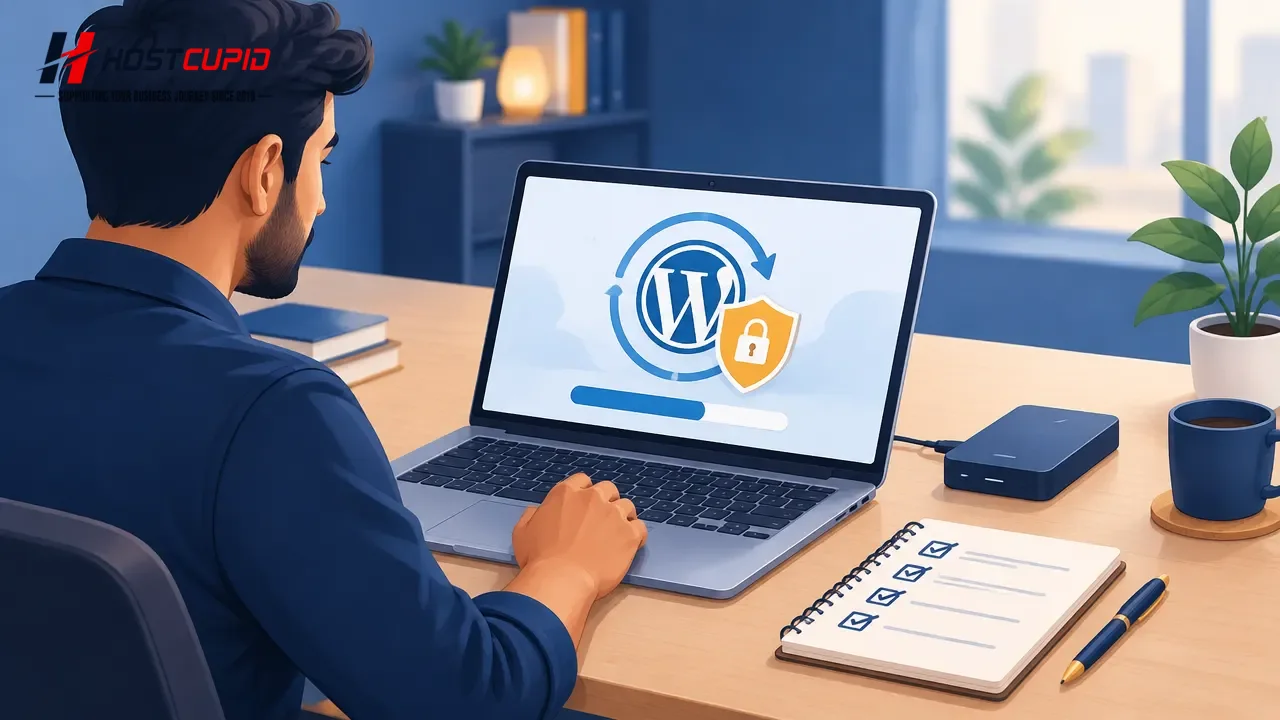
WordPress 7.1.4, released on October 28, 2026, is a security update that fixes multiple issues. WordPress recommends updating sites immediately. If your website is on an earlier affected version, check its core version and update rather than assuming that an automatic update has already completed.
The fixes cover several areas, including stored cross-site scripting, exposure of unpublished Customizer changes, and a race condition in the core update process that could lead to remote code execution. The release also updates bundled root certificates following an eMudhra revocation. The precise fixes vary by issue, and a site’s actual exposure depends on its configuration and use of affected functionality; the practical first step is to apply the relevant corrected release. WordPress’s release announcement and version documentation list the changes and affected branches.
Which WordPress sites should check?
Check every WordPress installation you manage, including shop sites, campaign websites, staging copies that are publicly reachable, and client sites under agency care. WordPress published fixes for affected older branches as well as 7.1.4. For example, the official version documentation lists corrected releases for branches including 7.0, 6.9, and earlier supported branches. The right target is the current fixed release for your branch, not a guess based on a version number remembered from another site.
- Current version: In the Dashboard, open Updates and note the installed WordPress version.
- Automatic updates: Confirm the update actually completed; a notification alone is not confirmation.
- Multiple sites: Check each installation separately, including sites with different owners or admin logins.
- Unsupported old versions: WordPress says versions earlier than 4.7 no longer receive security updates. Plan a supported upgrade rather than treating an old installation as fixed by this release.
How to update without losing sight of the site
WordPress supports dashboard updates and automatic background updates for eligible sites. Before manually starting an update, make sure you have a usable backup of the database and site files. A backup is useful only if you know where it is and can restore it. WordPress’s update guidance recommends backing up first; it also notes that update operations replace core files, so custom changes made directly to those files can be lost.
- Record the starting point. Note the site’s WordPress version, update status, and any visible checkout, login, or form issue before changes.
- Confirm your recovery option. Check that a recent backup includes both files and database, and that you know how to request or perform a restore.
- Apply the corrected release. In WordPress Dashboard, go to Updates and use the offered update. For an older branch, follow the version documentation to identify the fixed release for that branch.
- Check the result. Reload the Updates screen and confirm the installed version. If the update failed or the site displays maintenance mode or an error, do not keep retrying blindly; inspect the error and contact your developer or host if you need help.
What should you test after updating?
A successful update message is not the same as a complete business check. Visit the public site in a private browser window and test the paths customers or staff rely on. For a WooCommerce store, check a product page, cart, checkout, and order confirmation using an appropriate safe test method. Also test the WordPress dashboard, key forms, and any custom blocks or interactive features your site uses.
- Look for blank pages, PHP errors, broken layouts, or missing images.
- Confirm forms submit and required email notifications still arrive.
- Check that admin access and important editorial or store tasks work.
- Clear page or object caches if the site still appears to show old output, then test again.
- Review the update screen and site-health notices; retain the exact error text if something fails.
Do not roll back core files without a recovery plan. Restoring an older version may also require restoring its matching database and files. For an online store, first account for orders and customer activity created after the backup.
What this means for hosting customers and agencies
WordPress updates change website application files; they do not mean that every plugin, theme, or hosting setting is automatically updated too. Keep those components on their own maintenance schedule and check their compatibility and update notices. If you manage multiple client websites, keep a simple register of domains, current core version, backup location, last update, and post-update test result. That makes it easier to identify a missed installation than relying on memory or a single dashboard.
HostCupid Web Solutions Private Limited is a Chennai-based company providing shared and WordPress hosting, website development, and migration assistance. For a business using WordPress hosting, this release is a reminder to clarify who is responsible for applying core updates, checking backups, and testing the storefront afterwards. If you need assistance with a WordPress site or a hosting migration, establish the scope and recovery plan first; do not assume a hosting package includes a particular update service unless that has been confirmed.
WordPress 7.1.4 is a security release, not a feature upgrade to postpone casually. Check the installed version across your sites, apply the corrected release appropriate to each branch, and verify the pages and transactions your business depends on.
Sources
- WordPress 7.1.4 release announcement · 2026-10-28
- WordPress 7.1.4 version documentation · 2026-10-28
- Updating WordPress