

3.
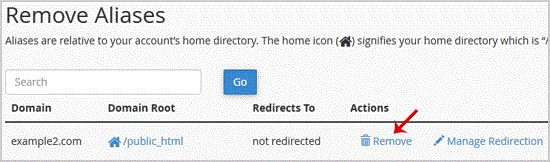
You should see a success message that your Parked/Alias Domain is removed.
1. Log into your cpanel account.2. In the "Domains" section, click on "Parked Domains" Icon. 3. Under "Remove Aliases", locate the parked domain name and. "Remove" link.. For confirmation you will need to. "Remove Alias" babies once more.Y…
Explore related website, hosting, WordPress, security and reseller topics.
1. Log into your cpanel account.2. In the "Domains" section, click on "Redirects" Icon. 3. Scroll down to the end of page and under "Current Redirects" locate the domain and. "remove" icon.…
Read article →1. Log into your cpanel account.2. In the "Domains" section, click on "Redirects" Icon. 3. Under "Add Redirect" you should enter the following details and chose the appropriate option.Type:…
Read article →1. Log into your cpanel account.2. In the "Domains" section, click on "Subdomains" Icon. 3. Under the "Modify a Subdomain" list you can see a list of subdomains.. Click the "Manage Redirect…
Read article →1. Log into your cpanel account.2. In the "Domains" section, click on "Subdomains" Icon. 3. Under the "Modify a Subdomain" list you can see a list of subdomains.. Click the "Remove" option…
Read article →