
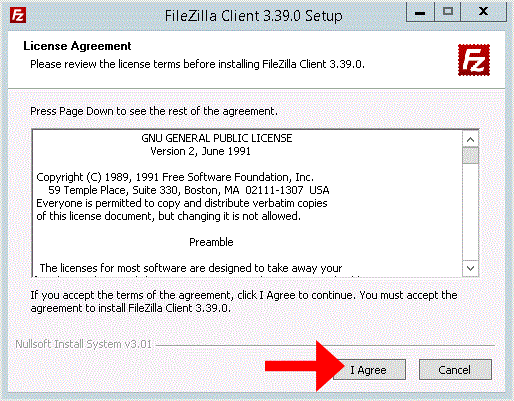
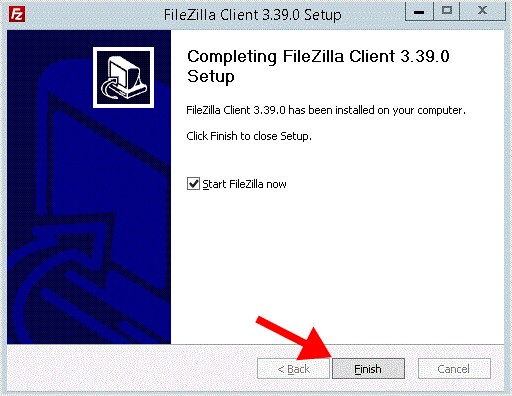
Installing the FileZilla FTP Client on Windows OS is easy. Just follow this tutorial.
Congratulations. You successfully installed the FileZilla Client on your Windows OS. Now you can start using it.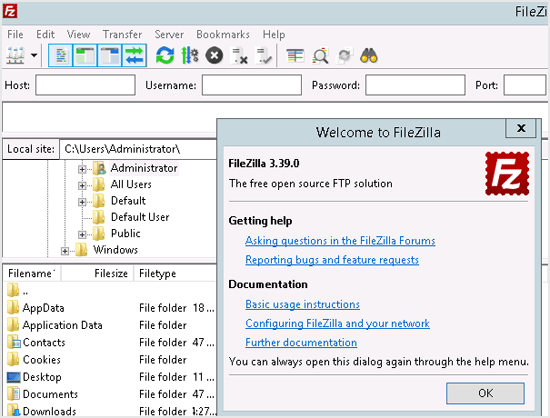
Installing the FileZilla FTP Client on Windows OS is easy. Just follow this tutorial. 1. Download the Filezilla FTP Client Installer file for your Windows OS. 2. Double click to Run the FileZilla FTP Setup File. It will show a security war…
Installing the FileZilla FTP Client on Windows OS is easy. Just follow this tutorial.
Congratulations. You successfully installed the FileZilla Client on your Windows OS. Now you can start using it.
Explore related website, hosting, WordPress, security and reseller topics.
You can download files from your website to your Computer using FileZilla Client.1. Open FileZilla FTP Client. 2. Enter your FTP Host, Username and Password. You can use your cpanel usernam…
Read article →Maybe you are web designer or you have a index file and want to upload it to your site. You can follow this tutorial to upload your site files on your hosting account. 1. Open FileZilla FTP…
Read article →You can create or remove directory on your website using the FileZilla FTP Client.1. Open the FileZilla FTP Client.2. Enter your FTP Host, Username and Password. You can use your cpanel use…
Read article →You can access your FTP Account using the FileZilla FTP Client or any FTP Client. 1. Open the FileZilla FTP Client.2. Enter your FTP Host, Username and Password. You can use your cpanel use…
Read article →