
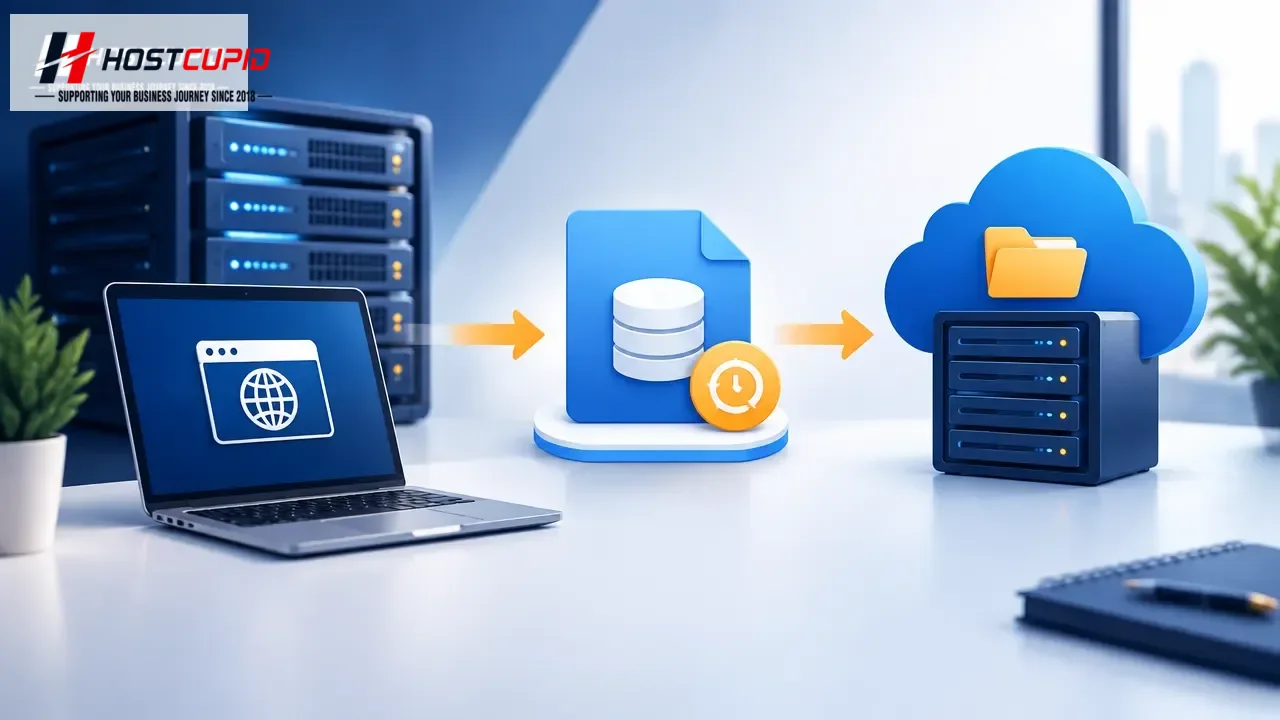
Use cPanel’s Backup tool to create a full website backup and transfer it to a remote FTP server.
- Log in to your cPanel account.
- In the Files section, click Backup.
- Under Full Backup, click Download a Full Website Backup.
- Set the backup destination to Remote FTP Server. Enter an email address if prompted, then provide the FTP connection details:
- Remote Server: The FTP server’s IP address or hostname, such as
ftp.example.com. - Remote User: Your FTP username.
- Remote Password: Your FTP password.
- Port: The FTP port, commonly
21, or the port specified by your FTP provider. - Remote Dir: The destination directory on the remote server, such as
/home/username/backupfolder/.
- Remote Server: The FTP server’s IP address or hostname, such as
- Review the destination and connection details, then click Generate Backup.
Make sure the FTP account has permission to write to the destination directory. If the transfer does not complete, verify the server address, credentials, port, and directory path.