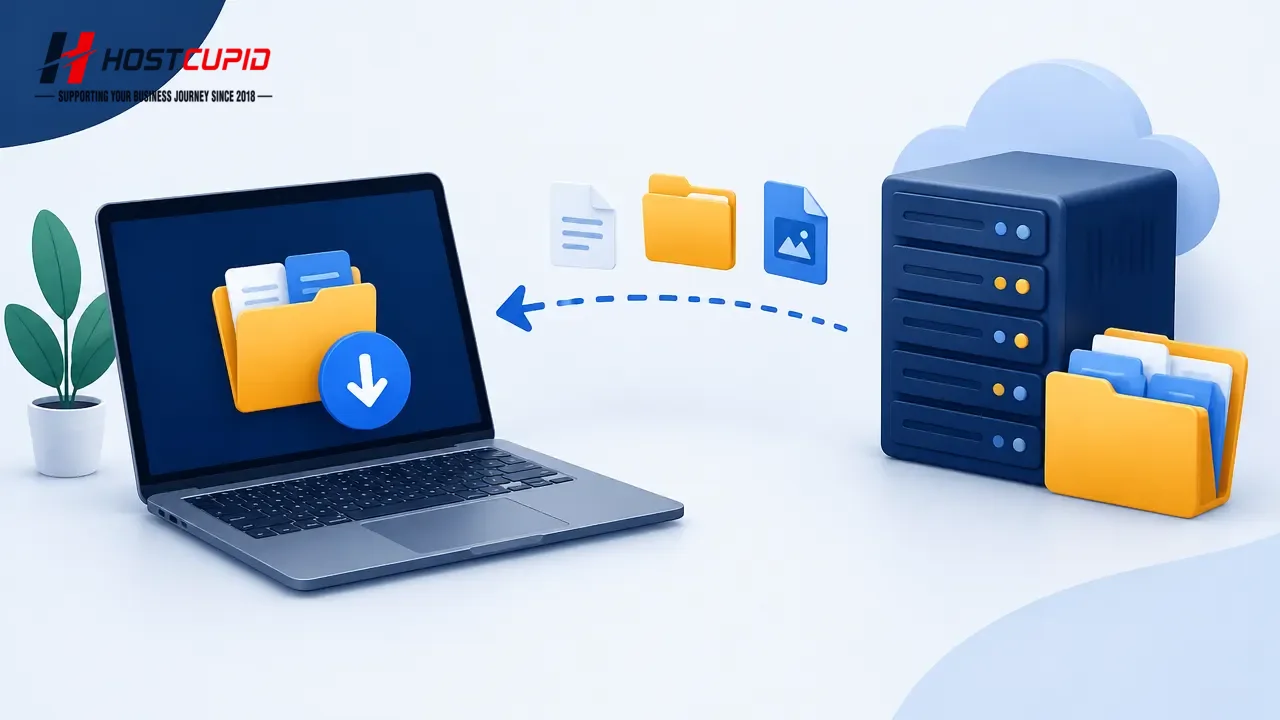
How to Download Files and Folders Using FileZilla
Use FileZilla to download files and folders from your website to your computer.Open FileZilla Client.Enter your FTP host, username, and password, then select Quic...
Read guide →

Search 9 HostCupid guides covering hosting, cPanel, WordPress, domains, email, security and website operations.
9articles
Use FileZilla to download files and folders from your website to your computer.Open FileZilla Client.Enter your FTP host, username, and password, then select Quic...
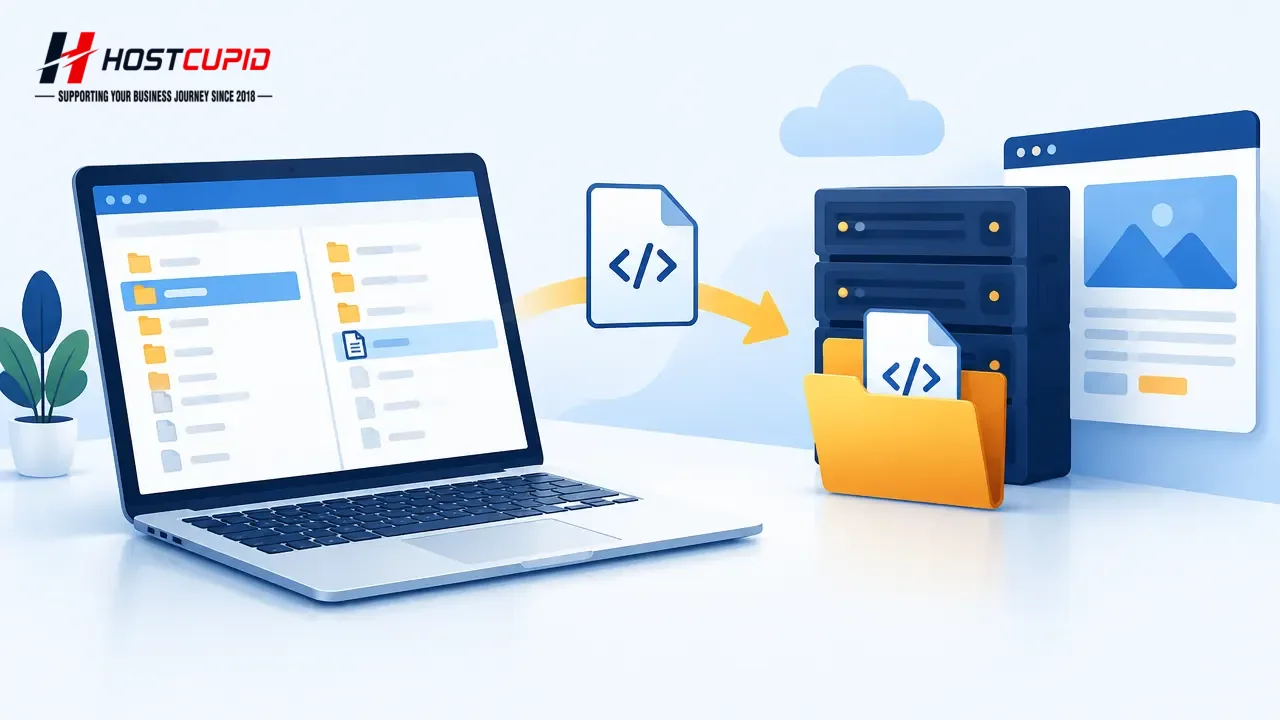
Open FileZilla.Enter your FTP host, username, and password, then select Quickconnect. You can use your cPanel username and password for FTP access. For the host, ...
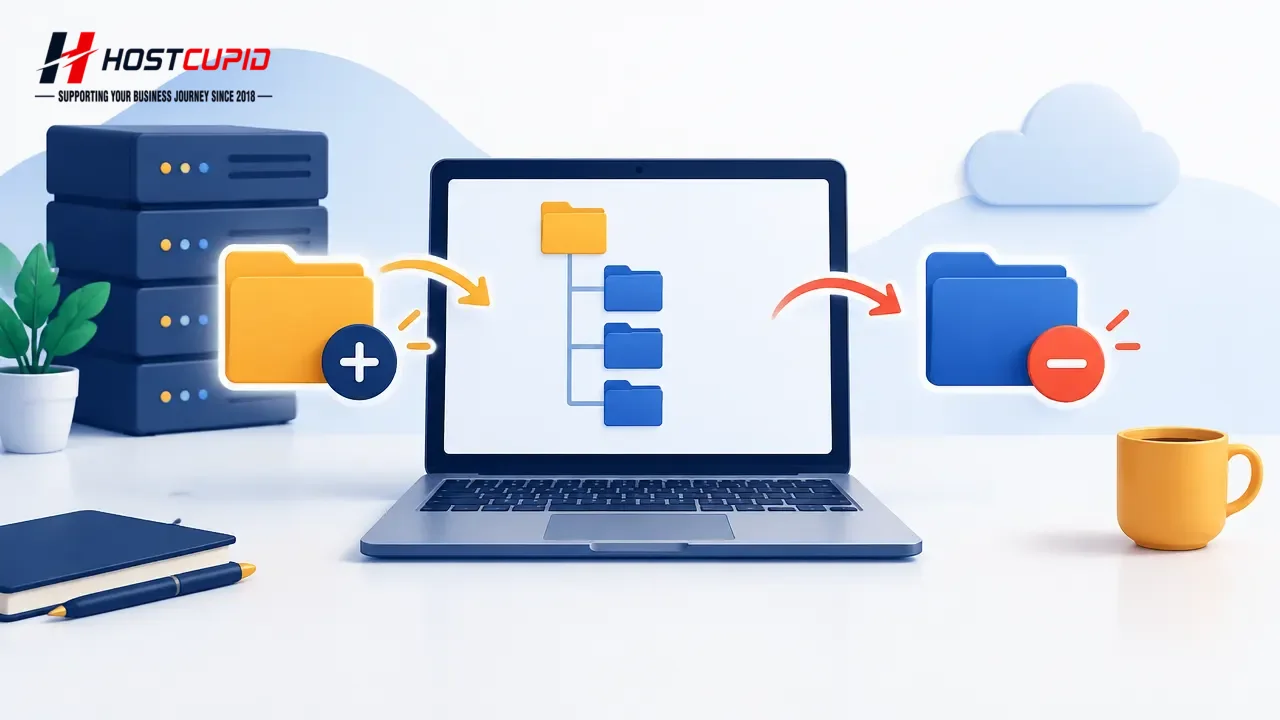
Use FileZilla to create or delete directories on your website. Open FileZilla and enter your FTP host, username, and password. You can use your cPanel username an...
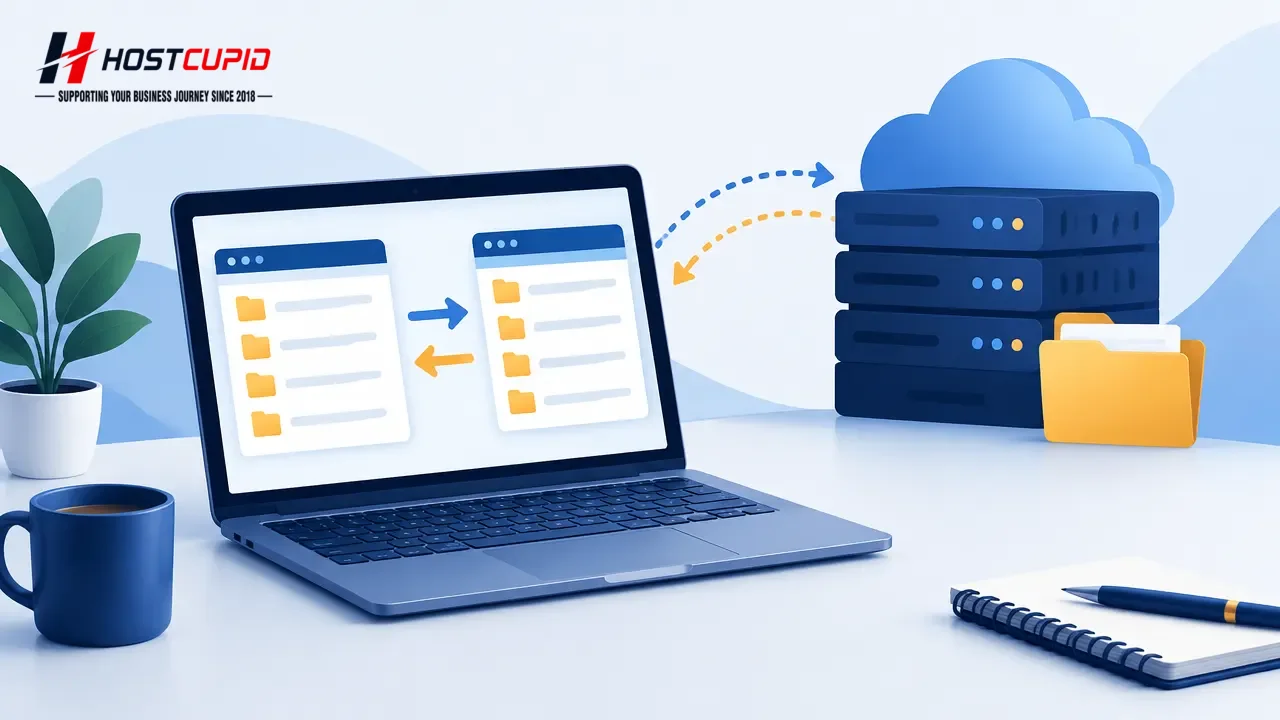
You can connect to your FTP account using FileZilla or another FTP client.Open FileZilla.Enter your FTP host, username, and password. If your hosting account allo...
Follow these steps to install the FileZilla FTP client on Windows.Download the FileZilla Client installer for Windows.Double-click the installer to run it. If a s...
To remove an unused FTP account in cPanel:Log in to cPanel.In the Files section, click FTP Accounts.Find the account in the FTP Accounts list and click Delete.Con...
To change an FTP account’s disk quota in cPanel:Log in to your cPanel account.In the Files section, click FTP Accounts.Find the FTP account in the list and click ...
To change the password for your main FTP account, change your cPanel account password. To change the password for a specific FTP account, follow these steps:Log i...
A separate FTP account lets you grant access to a specific directory without sharing your main cPanel credentials.Log in to cPanel.In the Files section, click FTP...